Creating the Email Domain
After logging in as the admin user:
-
Select "Email" > "Configuration".

-
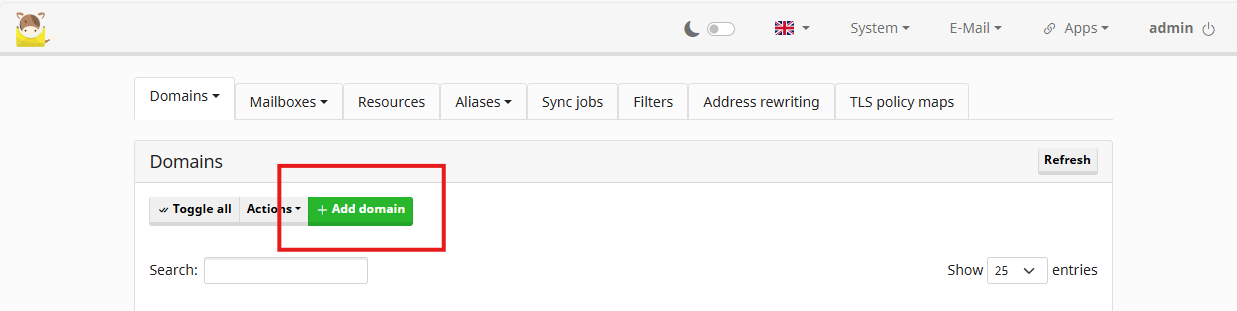
Click the "Add domain" button.
-
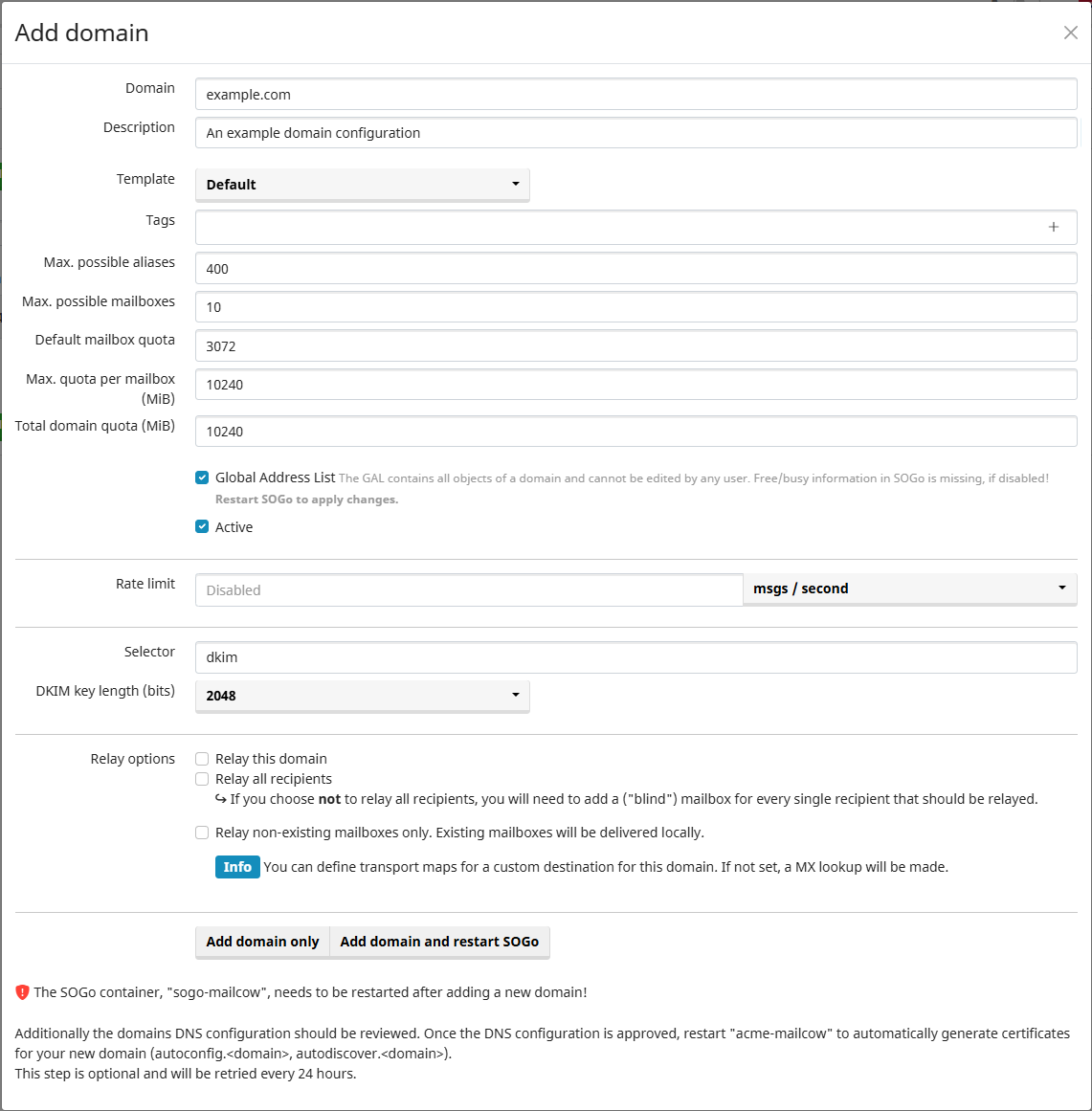
Enter the required details in the "New Domain" dialog.
Note: Ensure the domain is valid with the required A and AAAA records and reverse DNS set to the host IP. You must have control to add properties to the domain. Refer to prerequisites for more details.
-
After entering the details, click "Add domain and restart SOGo".
-
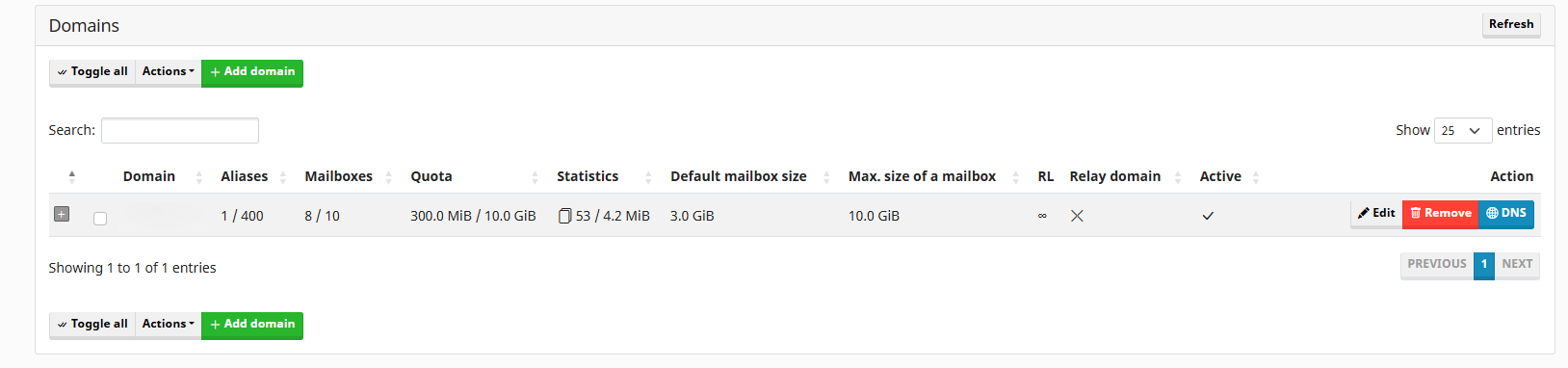
After the server restarts, the domain will appear in the list of domains.
-
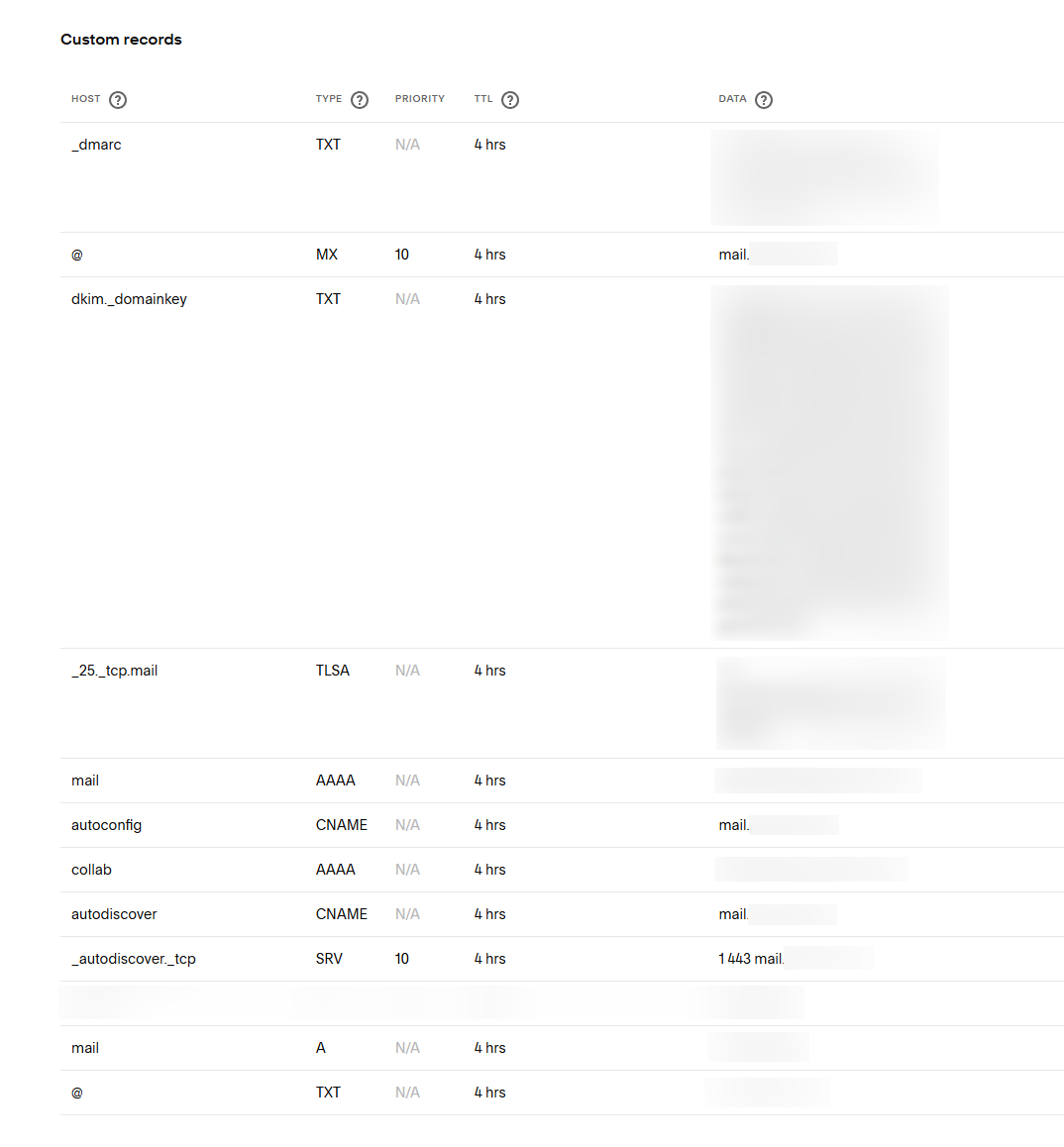
Click the "DNS" button and update all entry values in the DNS records with your domain provider. If configured correctly, a green check will appear.
Note: Ensure all configurations (including optional ones) are set correctly and show a green check.
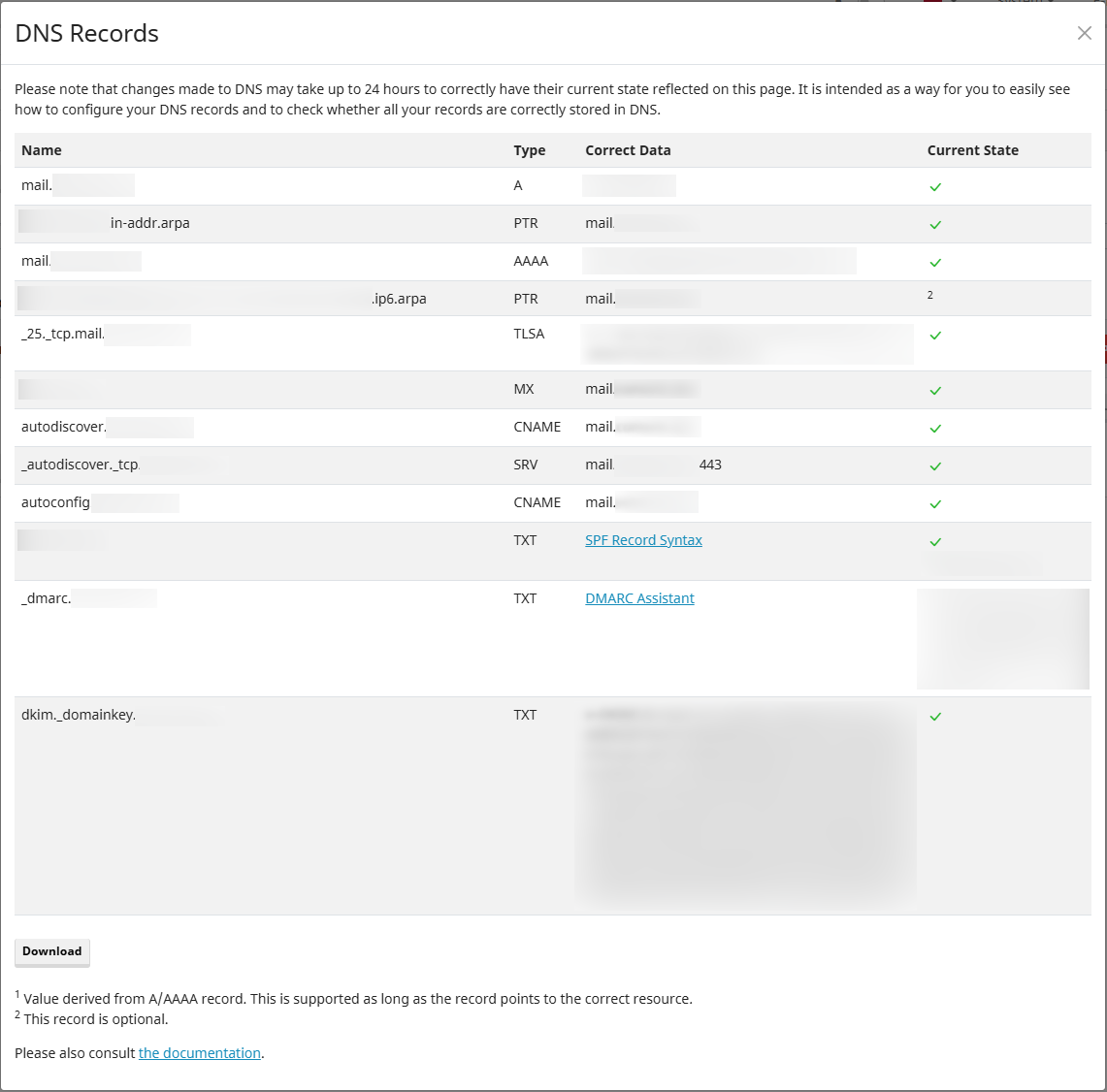
Sample DNS Entry Records Based on an Example Email DNS Configuration
Create an Info Email and a DMARC Alias
-
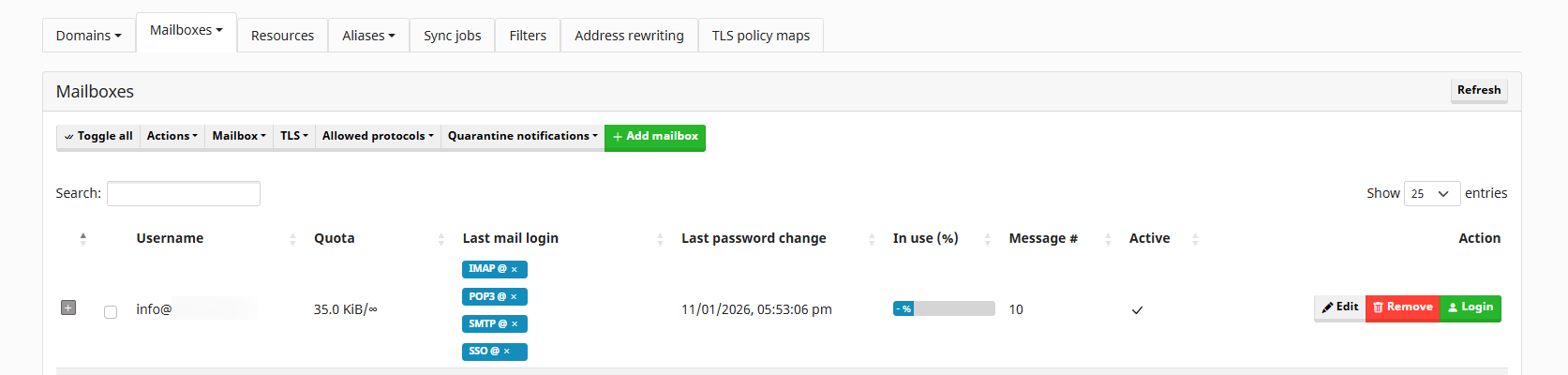
Create a new mailbox as "info@exampledomain.com" (replace "exampledomain.com" with your actual domain name). Use the "Add mailbox" button and enter the required information.
-
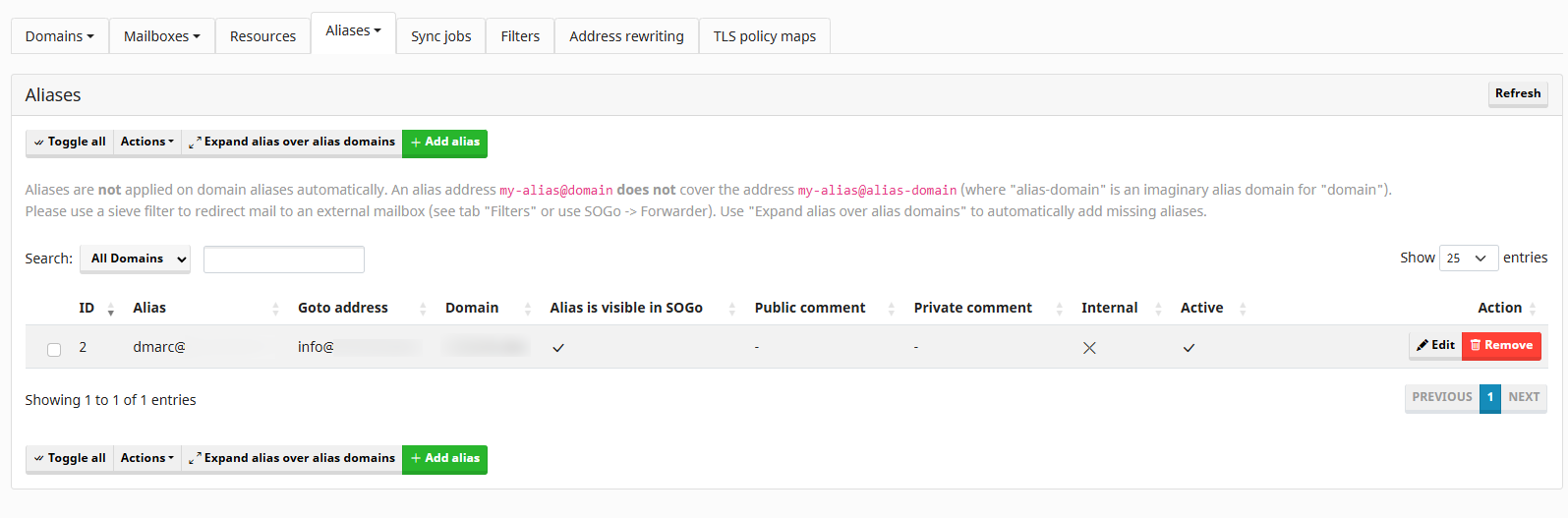
Create an alias using the "Aliases" option, set to the email specified in the DMARC property. Typically, this is "dmarc@exampledomain.com" (replace "exampledomain.com" with your actual domain name).